Set up 365 email on your iphone or ipad

Skip to main content
< All Topics
Print

Set up an Outlook account on the iOS Mail app

Thanks to Microsoft for their own excelent KB article
Set up an Outlook account on the iOS Mail app | Microsoft Support

Set up a Microsoft 365, Exchange, or Outlook email in the iOS Mail app

Go to your iPhone or iPad’s Settings > scroll down and tap Apps > Mail > Mail Accounts >Add Account.
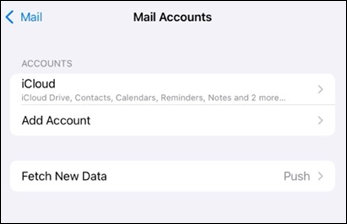
Outlook mobile mail app add account on iOS

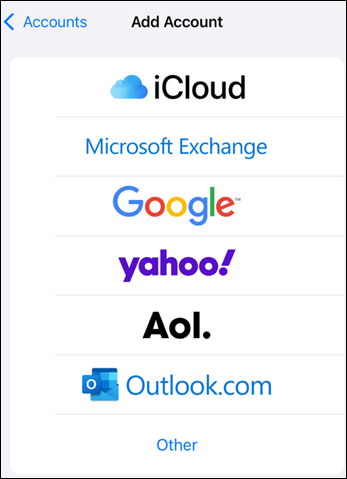
Select Microsoft Exchange.

Outlook mobile mail add account provider options

Enter your Microsoft 365, Exchange, or Outlook email address and a description of your account. Tap Next.
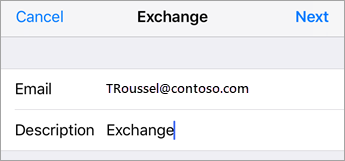
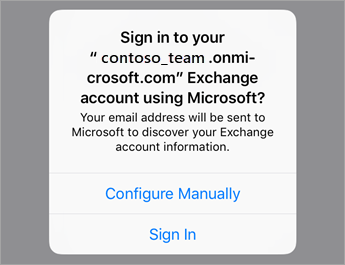
Exchange Sign In

Tap Sign In.

Tap Sign In if using O365 or tap Configure Manually if you have your organizations server settings.

Note

Tap Configure manually if you need to enter server settings.

Enter the password associated with your email account. Tap Sign in or Next.
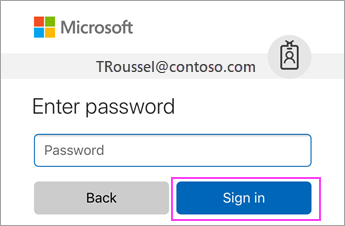
Enter your O365 work or school account password.

The Mail app may request certain permissions. Tap Accept.
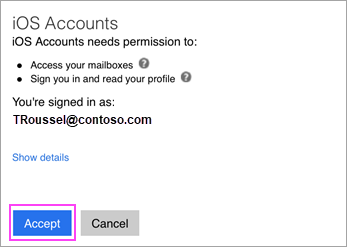
Tap Allow if prompted to give permission.

Choose the services you want to sync with your iOS device and tap Save. You’re done!

Account sync settings

Now you can see your email

Table of Contents

Ready to Take the Stress Out of Your IT?

Book a free, no-obligation consultation with one of our friendly experts.
Let’s explore how we can support your business with reliable IT services, robust cybersecurity, and full compliance — all tailored to you.

  • No hard sell — just expert advice
  • Tailored to your business needs
  • Trusted by businesses across Yorkshire
Book Your Free Intro Call Now

Stay informed with the latest IT tips, cybersecurity advice, and exclusive resources.

This field is for validation purposes and should be left unchanged.
Andisa IT - Leading Managed  Service Provider in Yorkshire, serving Harrogate, Leeds, York, and surrounding areas.