
Intune Suite
Thanks to the original authors at How to Synchronize a SharePoint Site Library to File Explorer with Microsoft Intune – Recast this is a great guide worth reporsting.
Published On Aug 26, 2024 byFabian Rodriguez
5 min
Table of Contents
Have you ever received a service desk ticket asking how to add a SharePoint site to File Explorer? This can be time-consuming for new hires on their first day and for your help desk team. Let’s explore how to automate this process using Microsoft Intune. By leveraging Dynamic Groups, you can automatically configure team SharePoint sites in File Explorer via OneDrive.
Requirements
- OneDrive Files On-Demand enabled
- Windows 10 (1709) Fall Creators Update or later
- SharePoint Library ID
Step-by-Step Process
First, let’s go to your SharePoint site that we want to setup for automatic sync, in my case I’m going to use the Marketing site that I have created in SharePoint.
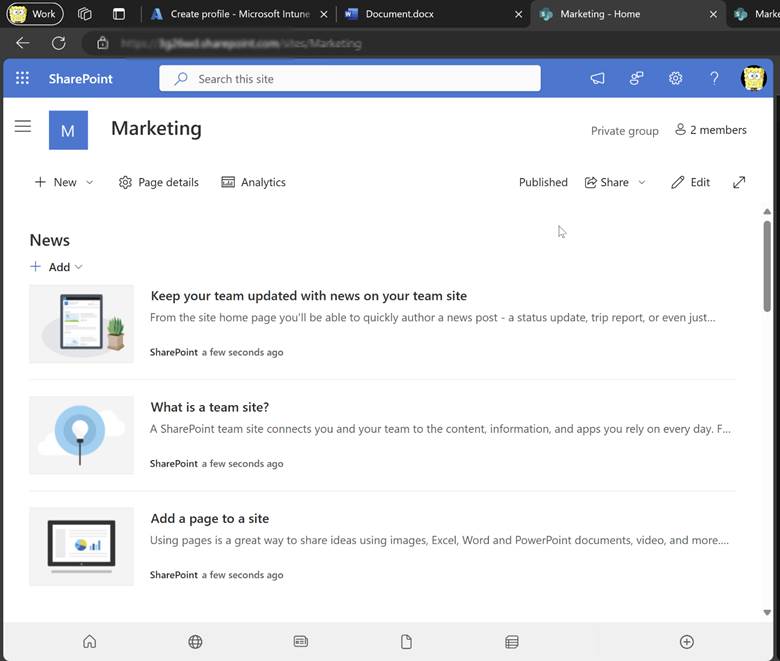
Copy the Library ID. Click on the Documents sections on the left-hand side.

Sync and Copy Library ID
In the Documents section, click the Sync button. When prompted to Open Microsoft OneDrive, click Cancel. In the pop-up option, click on Copy Library ID to copy the Library ID.


Configure in Intune
Now go to https://intune.microsoft.com/ > Devices > under the Manage devices section, click on Configuration.

In the Configuration page, click on + Create. Select ‘Windows 10 and later’ under Platform and choose Settings Catalog under Profile type. Click Next.

Give your Profile a Name and Description. Click Next once complete.

Next, you’ll be directed to the Configuration settings to pick your settings. Search for Configure team site libraries to sync automatically. Then click on OneDrive under Browser by category. Next, under the OneDrive Category, select the Configure team site libraries to sync automatically (user).

Once that is selected, close out of the screen to setup your settings on the backscreen. On this page, you’ll want to give your Libraries a name and a value. Remember the Library ID we copied from earlier? You will need to add that to the Value section. Click Next when ready to move forward.

I skipped Scope tags, but you can adjust those settings if needed.
Next, we’ll assign this library to our users. In my case, I will select a dynamic group for the Marketing team so that all our Global Marketing users will get this SharePoint library automatically.

Review and Create
Review and then create your profile. Then, verify on your device that this policy has successfully synced the Marketing SharePoint documents to the end user’s File Explorer.
Before the policy is enabled, the user does not see any SharePoint site libraries available in their File Explorer.
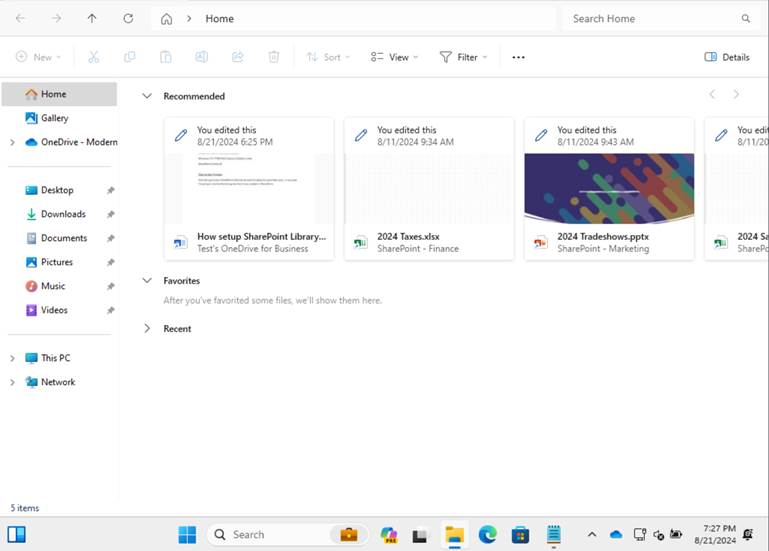
After the policy is applied, we can now see those SharePoint files sync through to the File Explorer.

Verify inside of the Marketing SharePoint as well.