Quite often we get a call to say that a person has left at the start of their holiday and forgotten to enable Out Of Office.
We are glad to help our contract clients however this is a user option and there is a backup plan.
Assuming you have mail on your phone, just follow these easy steps.
In fact I find this easier to do rather than doing it on my PC and so use thsi every time.
How to set out of office on outlook samsung
To set an out-of-office reply on Samsung devices using Outlook, follow these steps:
- Open the Samsung Email app on your device.
- Tap the three horizontal lines in the upper left corner to open the navigation menu.
- Select Settings and choose the account for which you want to set an out-of-office message.
- Find the Out of Office Message or Automatic Replies option and toggle it to On.
- Enter your custom message, including your start and end dates of absence, and provide alternative contact information if needed.
- Now tap save
How to Set Out of Office on Outlook iPhone
To set an out-of-office reply on your iPhone, follow these steps:
- Open the Outlook app on your iPhone.
- Tap your profile icon in the upper left corner.
- Tap the gear icon to access Settings.
- Select your email account from the list of accounts.
- Tap “Automatic Replies.”
- Toggle “Send automatic replies” to the “On” position.
- Customize your reply message: enter your internal and external auto-reply messages.
- Set the date range: configure the start and end dates/times for your OOO message.
- Optionally, you may be able to set different messages for people inside and outside your organization.
- Now tap save
How to set auto-reply in Apple Mail on iPhone or iPad
If you use an email account such as Exchange, you can set up an auto-reply in Mail using the steps below:
- Open the Settings app → Select Mail.
- Tap Accounts → Pick the email account.
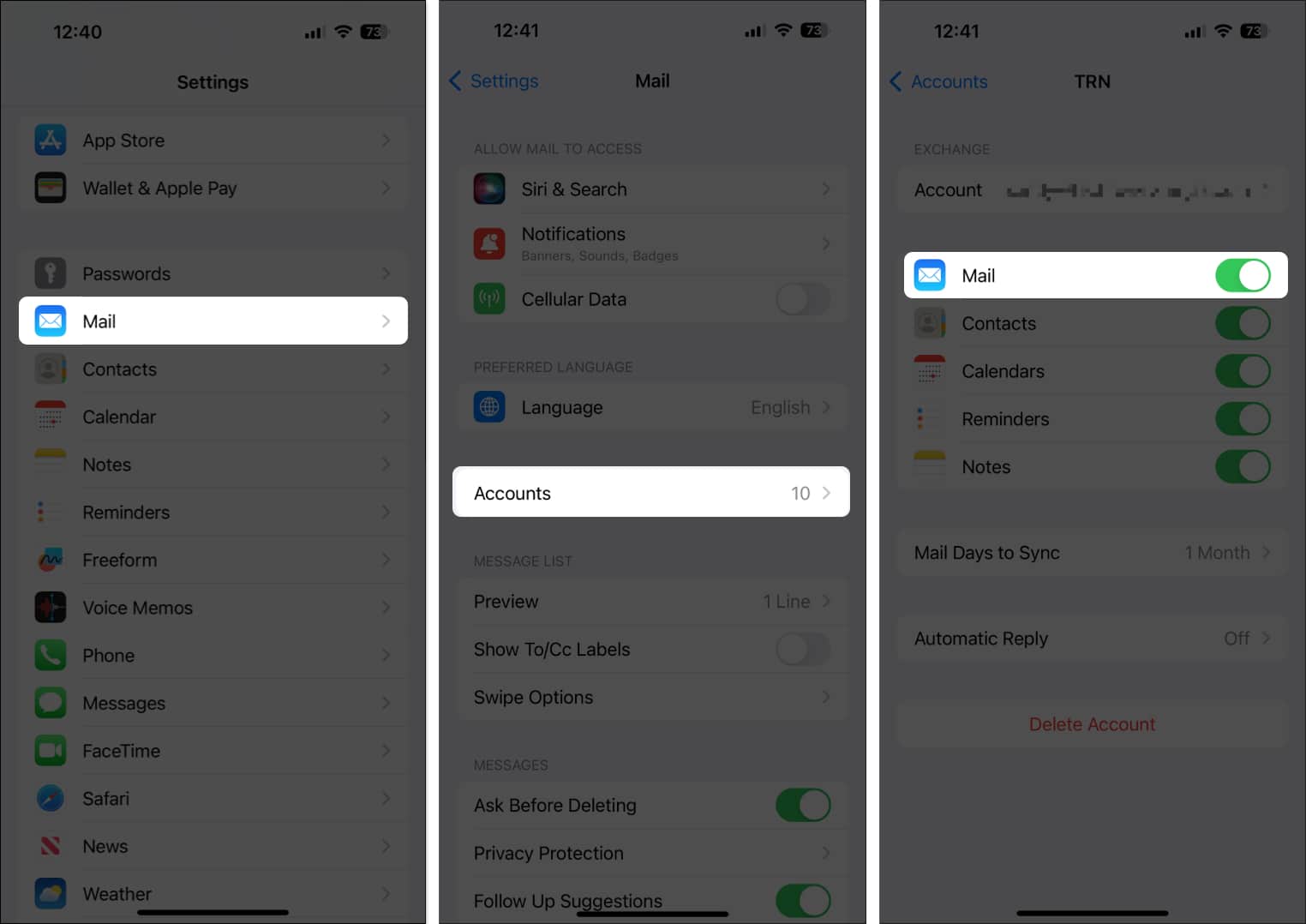
- Choose Automatic Reply which displays as “Off” until you set it up and turn it on.
The Automatic Reply option will only appear if the email account you are using allows it in the Apple Mail app. - Turn on the Automatic Reply toggle at the top.
- Optionally, select End Date to stop the automated reply on a specific date and time. If you choose None, you can simply return to this section and turn off the Automatic Reply toggle manually.
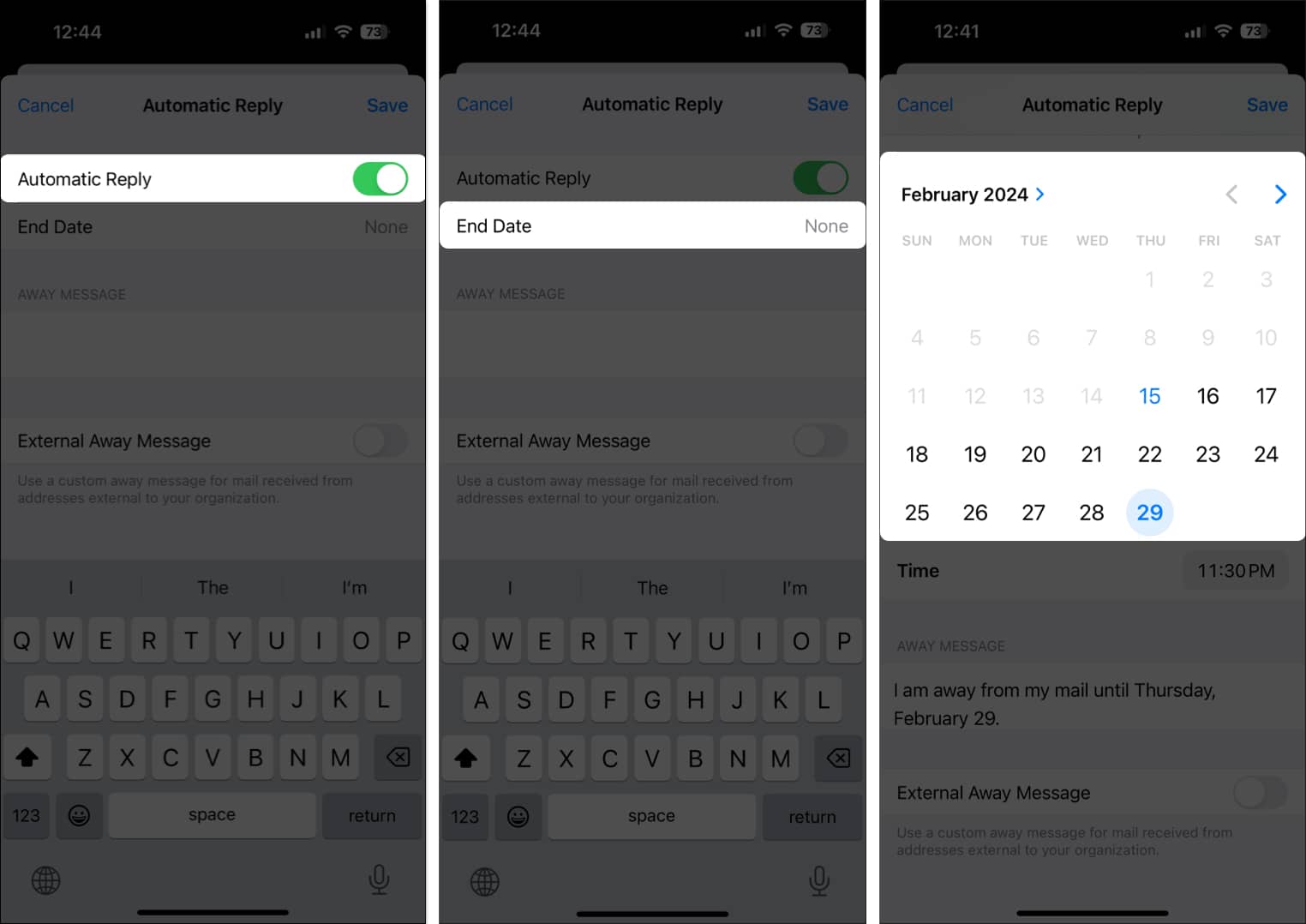
- Enter the reply in the Away Message box.
- If you want a different message sent to those outside your organization, turn on the External Away Message toggle, optionally pick a Respond to Mail from option, and enter your reply beneath.
- Tap Save on the top right when you finish.
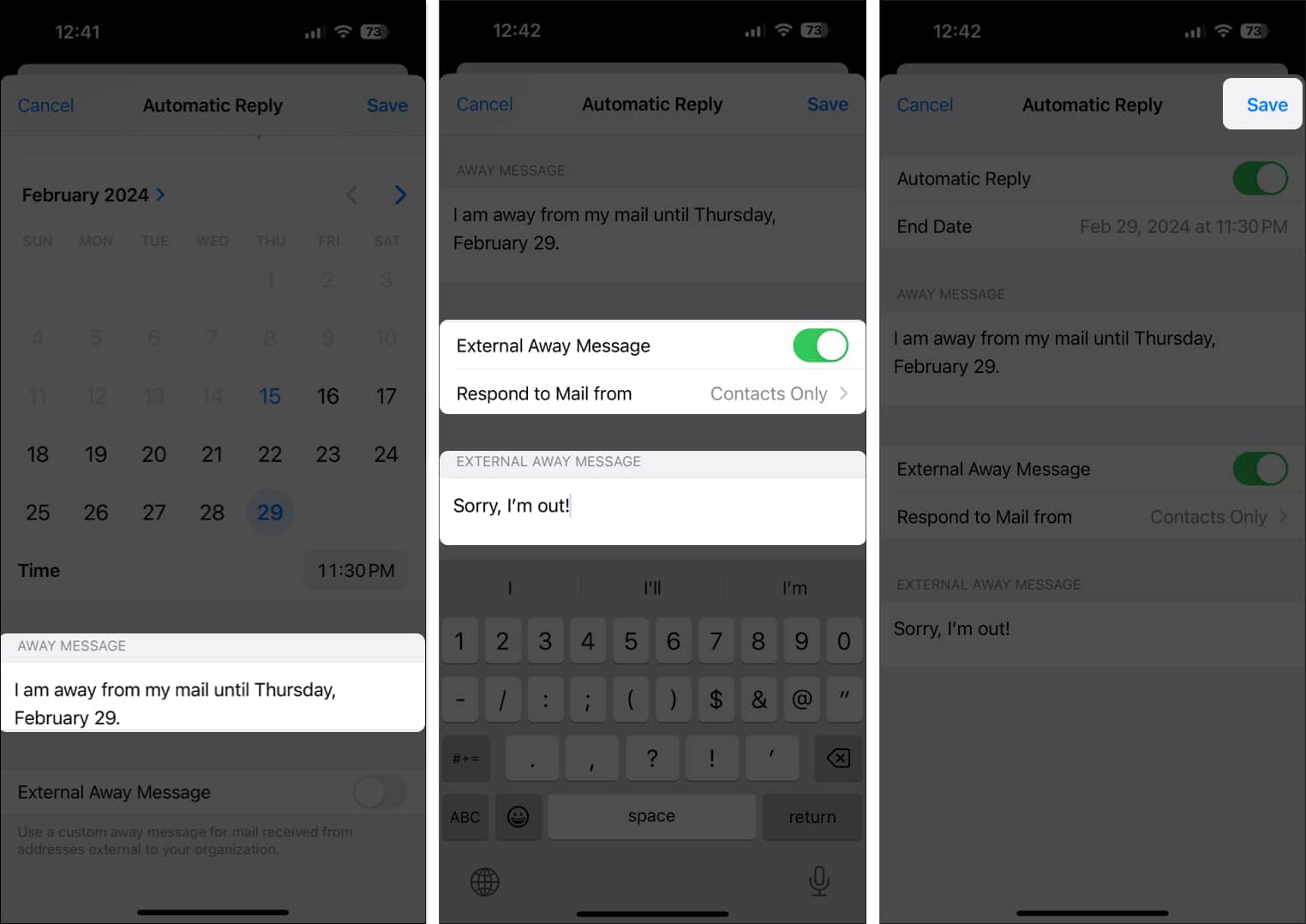
Since Mail on iPhone lacks a Start Date option for auto email replies, any reply you create will start sending immediately. If you want to set up the message first and activate it later, simply toggle off the Automatic Reply switch. When you’re ready, come back here and toggle it back on.
Thanks to How to set up auto-reply in Apple Mail on iPhone, iPad, and Mac – – iGeeksBlog for the instructions for apple mail.