
One of the most common questions we get is “How do I turn on Out of office replies” so I can go on holiday”
This is a user setting directly in Outlook and you can easily do it on your computer.
There are two ways to send automatic out-of-office replies in classic Outlook.
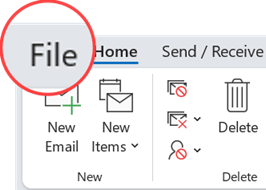
Select File on the left end of the ribbon:
If you have the Automatic Replies button, continue following the steps below.
If you don’t have the Automatic Replies button, then go to use rules to send an out of office message and follow the steps.
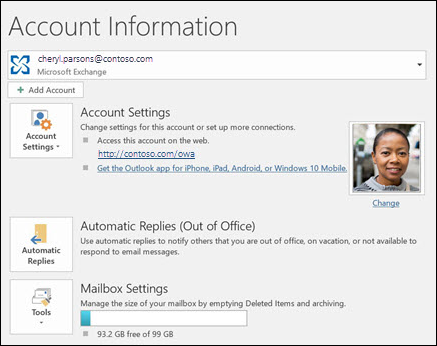
How to set up an automatic reply
- Select File > Automatic Replies.

- In the Automatic Replies box, select Send automatic replies.
Optionally, set a date range for your automatic replies. This will turn off automatic replies at the date and time you enter for the end time. Otherwise, you’ll need to turn off automatic replies manually. Note If you don’t have Automatic Replies, go to use rules to send an out of office message and follow the steps. - In the Automatic replies tab, type the response that you want to send. Note If you have a work or school account, you can type the response that you want to send on either the Inside My Organization tab or the Outside My Organization tab. Sending automatic replies to anyone outside my organization will send your automatic reply to every email, including newsletters, advertisements, and potentially, junk email. If you want to send automatic replies to those outside your organization, we recommend choosing My contacts only.
- Dont forget to set the start and end time if you want the replies to stop automatically when you come back from holiday.
- Select OK to save your settings.
Turn off automatic out-of-office replies
When classic Outlook is setup to send automatic replies, you’ll have a message under the ribbon with this information. Select Turn off to disable automatic out-of-office replies. If you want to modify the dates for your automatic reply or the message sent, use the steps above to modify your settings.

Thanks to Microsoft for this excellent article