Stay informed with the latest IT tips
Cybersecurity advice and exclusive resources from the Andisa team, straight to your inbox.
Sometimes when a user leaves, or perhaps once a year to file away emails you may want to file away emails into a central archive.
This is a straightforward process with 5 steps.
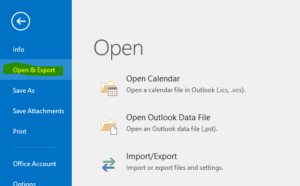
1. Start up Outlook and select file from the top left menu.
Now Choose “Open & Export”.
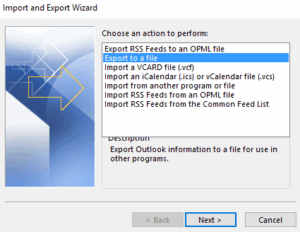
2. Choose Export to a file
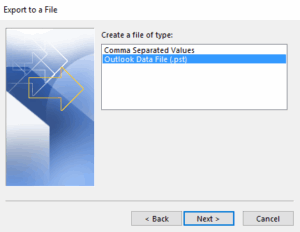
3. Choose “Outlook DataFile”
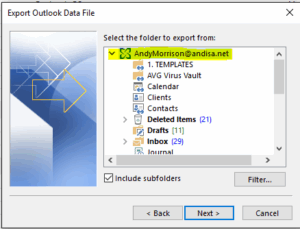
4. Click on your mailbox to make sure you export everything that’s there, or select a specific folder if you just want one.
5. Browse to a folder and name the file something sensible – “AndysMailExport04-07-15” and click OK
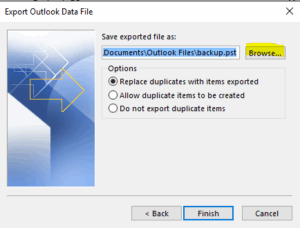
The Export will take a few minutes to complete.
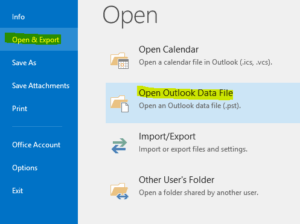
In the future, the archived mail can be accessed from the “File – Open & Export – Open Outlook data file” menu.